Updating an IPv4-only network to IPv6
Networks created before Managed Nebula supported IPv6 are IPv4-only and use version 1 Nebula certificates. You can update one of these networks in place to dual-stack. It keeps its hosts, settings, and IPv4 addresses, and gains an IPv6 overlay. Once it’s updated, the network can also use a managed lighthouse.
You don’t need to create a new network or re-enroll any hosts. To change a network’s IPv4 range instead, see Migrating to a new network.
What changes
Section titled “What changes”- The network keeps its IPv4 range, and every host keeps its IPv4 address.
- Defined Networking generates an IPv6 range for the network, so there’s no range to choose.
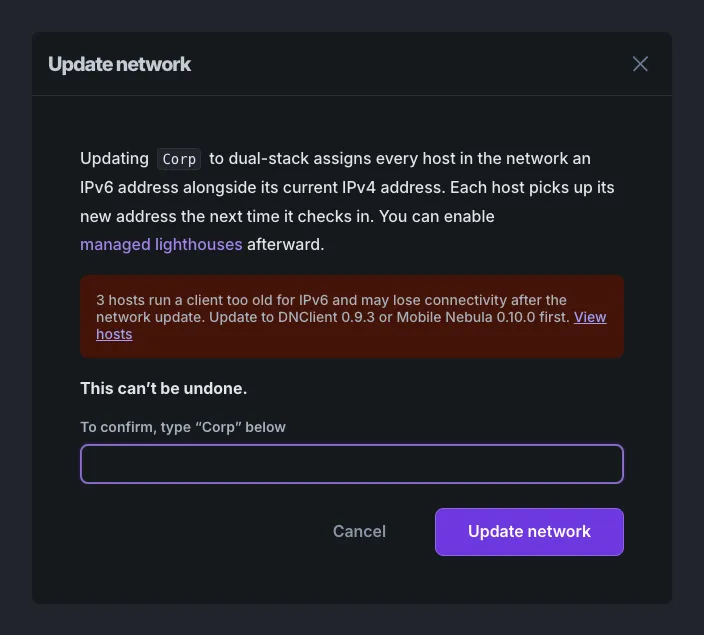
- Every host, lighthouse, and relay is assigned an IPv6 address in that range right away, and the admin panel lists it next to the host’s IPv4 address. Each host starts using its new address the next time it checks in.
- The network moves to version 2 certificates, which carry both addresses.
The update can’t be undone. A dual-stack network can’t go back to IPv4-only or version 1 certificates.
Before you update
Section titled “Before you update”Every host needs a client that supports version 2 certificates and IPv6:
- DNClient 0.9.3 or later, for both DNClient Server and DNClient Desktop (upgrade guide)
- Mobile Nebula 0.10.0 or later, from the app store for the device (see Mobile Nebula)
A host on an older client may lose connectivity after the update. Update those hosts first. If any host on the network reports an older client, the admin panel warns you before you confirm and links to the affected hosts.
If you manage hosts through the API or other automation, check that it uses the current host endpoints. A dual-stack network’s hosts can’t be managed through the older version 1 host endpoints. See Version 1 and version 2 certificates.
Update the network
Section titled “Update the network”-
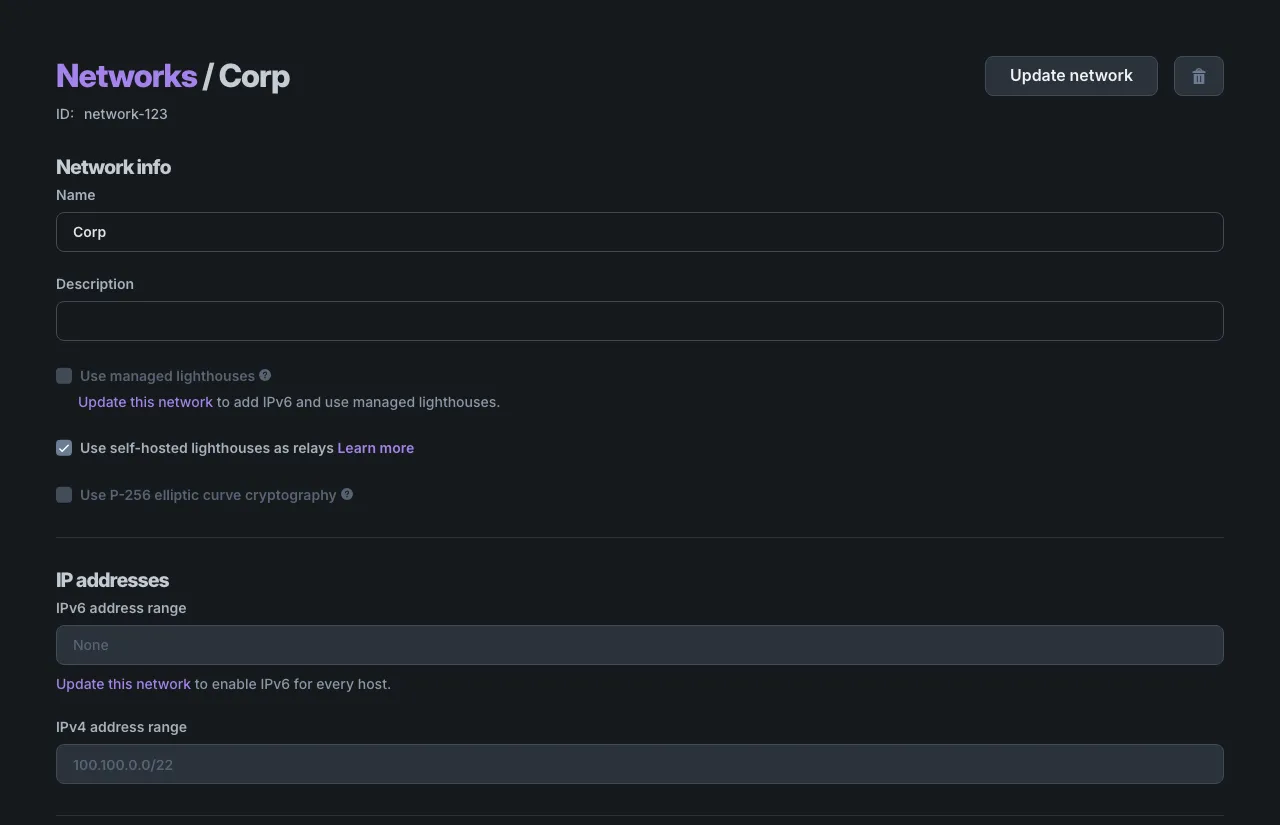
In the admin panel, go to Settings → Networks and click the network’s name to open its settings.
-
Click Update network. You can also choose Update from the network’s action menu on the networks list.
-
Type the network’s name to confirm, then click Update network.
The network’s IPv6 address range field now shows its new range. The update is recorded in the audit log.
After you update
Section titled “After you update”Hosts keep their IPv4 addresses, so applications that use them keep working. Once two hosts have both checked in since the update, they can also reach each other at their IPv6 addresses.
The network doesn’t start using a managed lighthouse on its own. To turn it on, follow Enabling the managed lighthouse.