Blocking and unblocking hosts
Blocking a host cuts it off from every other host in your network without deleting it. Use it when a device is lost, stolen, or compromised. This guide covers what blocking does, when to block rather than delete, and how to block and unblock a host from the admin panel or the API.
What blocking does
Section titled “What blocking does”When you block a host, Defined Networking adds its certificate to a blocklist and pushes updated configuration to every other host, lighthouse, and relay in the network. From then on they refuse the blocked host’s handshakes and drop any tunnel they still have with it. Every host that can reach Defined Networking stops trusting the blocked host within 60 seconds. DNClient applies the change on its own, so nothing needs a restart.
Defined Networking also stops issuing certificates to the blocked host and rejects its check-ins, and it refuses to enroll the host or create an enrollment code for it until it’s unblocked. The security whitepaper describes how the blocklist is distributed.
The host’s record stays in the admin panel. It keeps its name, IP address, role, tags, and configuration overrides, and its past certificates stay on file, marked as blocked.
Block or delete?
Section titled “Block or delete?”Blocking and deleting both cut the host off from the network. The difference is what’s left afterwards.
- Block when a device is lost, stolen, or compromised. Its record stays while you investigate, and blocking is reversible: unblocking restores the host with the same name, address, role, and tags, and without enrolling it again.
- Delete when the machine is gone for good, like a decommissioned server. Deleting removes the host’s record from your network and can’t be undone. Its certificate is blocklisted too, so a deleted host can’t reconnect either.
For a device enrolled through endpoint SSO, blocking also fits a lost or stolen device. Block the host so the device is cut off right away, and revoke the owner’s credentials in your identity provider if they shouldn’t be able to enroll another device.
Block a host
Section titled “Block a host”Hosts are blocked from their own page in the admin panel:
- Go to Hosts and open the host.
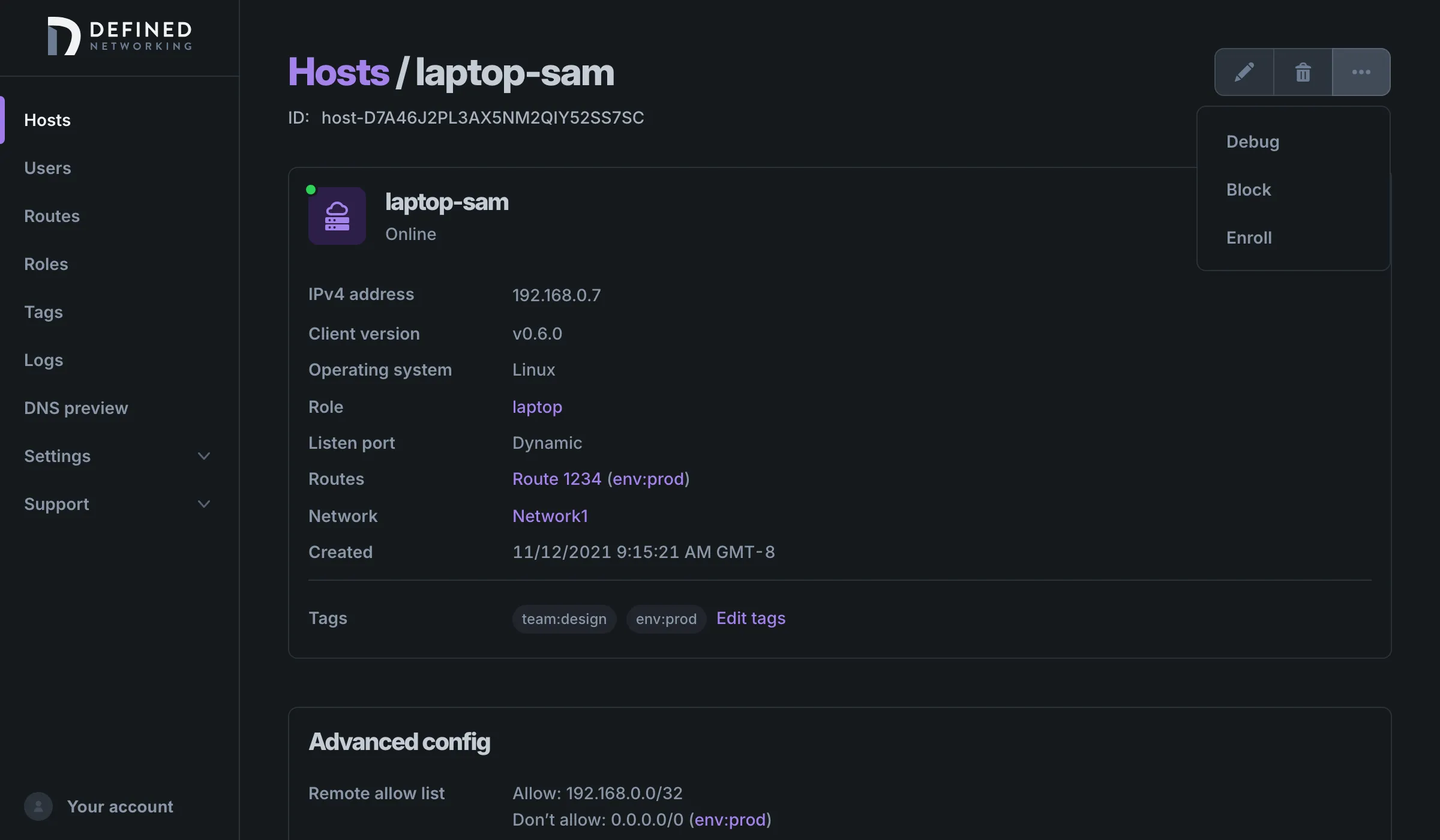
- Click the More button (the three dots at the top right of the page) and choose Block.
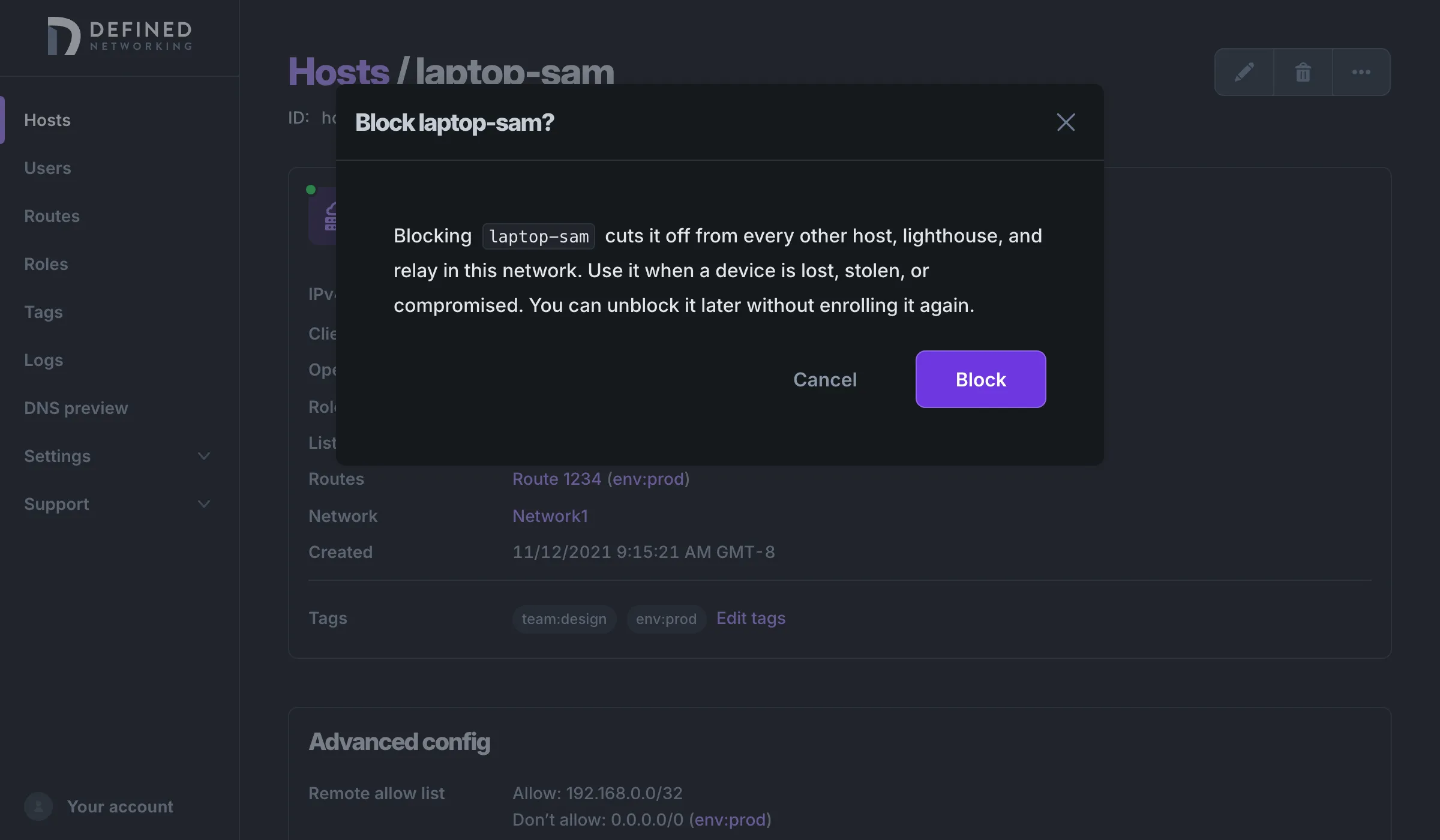
- Confirm in the dialog. It reminds you that the block applies to every other host, lighthouse, and relay in the network.
The same action works for lighthouses and relays. If the host is the only active lighthouse or dedicated relay in its network, the dialog warns you first. Networks with managed lighthouses stay connected either way.
Blocking and unblocking are recorded in the audit log with who did it and when, like any other change to a host.
While a host is blocked
Section titled “While a host is blocked”The host’s page shows a banner saying it’s blocked, with an Unblock host link. Its More menu offers only Unblock: you can’t enroll a blocked host or open its debug page, though you can still edit it or delete it.
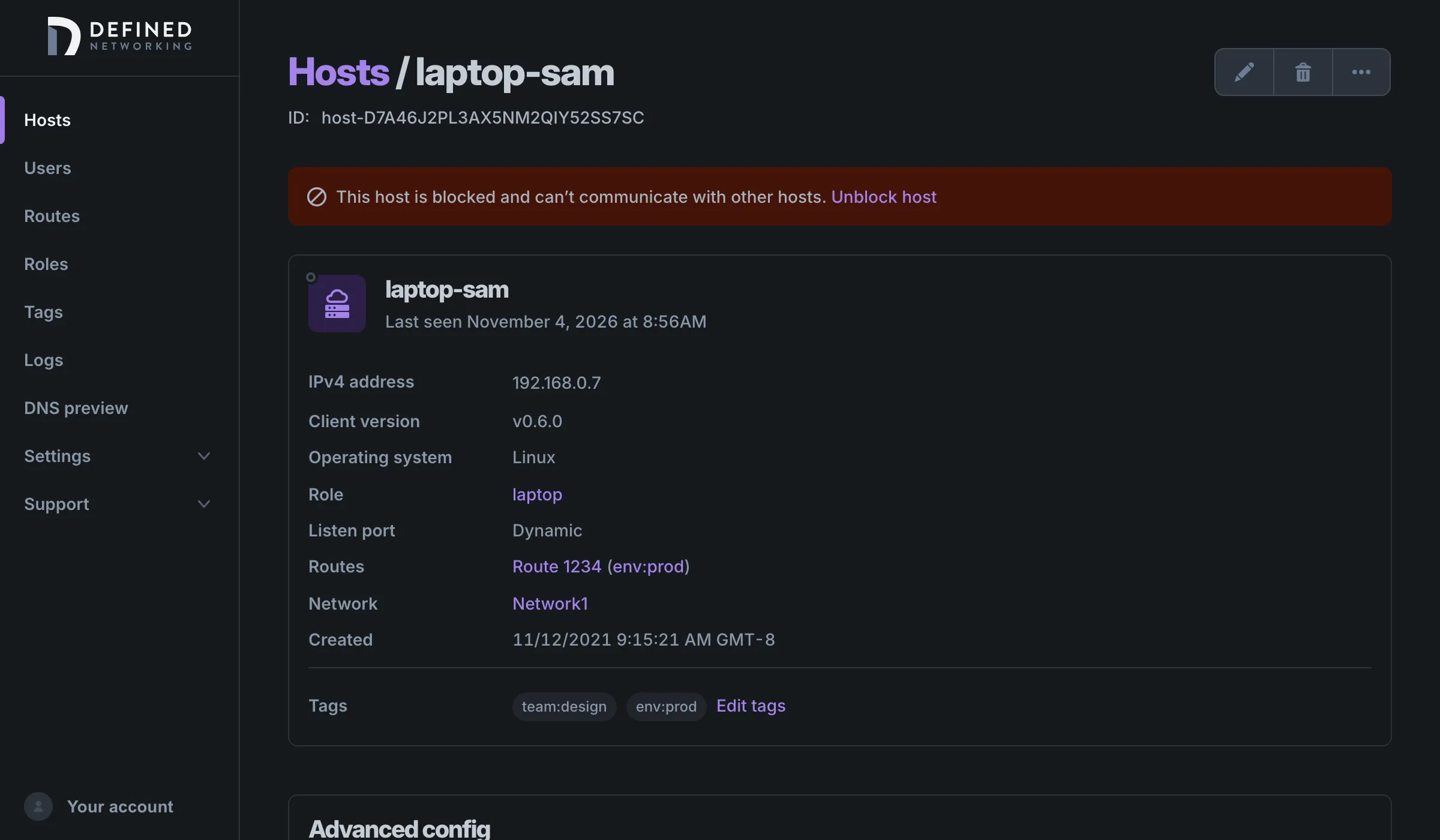
On the Hosts page, blocked hosts carry a Blocked badge next to their name. To list only blocked hosts, open the filter panel next to the network picker and check Blocked.
On the blocked device itself nothing is uninstalled or changed. DNClient keeps running, but every other host refuses its handshakes, so its tunnels fail. Its logs, and the logs of the hosts it tries to reach, show the failed handshakes.
Unblock a host
Section titled “Unblock a host”Open the host’s page and click Unblock host in the banner, or choose Unblock from the More menu, then confirm. The host doesn’t need to be enrolled again. The next time DNClient on it checks in, it receives a new certificate and configuration, and it can connect to other hosts again. If DNClient was stopped on the device, start it so that happens. On a phone or tablet, turn the site back on in Mobile Nebula.
Block and unblock with the API
Section titled “Block and unblock with the API”Hosts can also be blocked and unblocked with an API key. Grant it the hosts:block and hosts:unblock scopes it needs. See Block host and Unblock host in the API reference. Both return the updated host, whose isBlocked field reflects the change. To list the hosts that are blocked, call List hosts with filter.isBlocked=true.