Managing hosts and enrollment codes
Every machine in a Managed Nebula network is a host. You create the host in the admin panel first, then enroll a machine as that host with a single-use enrollment code. (To let many machines enroll with one reusable token instead, use a join key.) This guide covers that lifecycle: creating a host and enrolling it, re-enrolling it on another machine, editing it, and deleting it when the machine is retired.
Create a host and enroll it
Section titled “Create a host and enroll it”- Go to Hosts in the admin panel and click Add host.
- Fill in the host’s details and click Save:
- Name: something you’ll recognize in logs and on the dashboard, like
web-01orlaptop-sam. Names must be unique within a network. - Role: decides which traffic other hosts accept from this host. See Creating firewalls using roles and tags.
- Network: shown only if your account has more than one network.
- IP address (or IPv6 address and IPv4 address on a dual-stack network): leave blank to have an address assigned automatically.
- Tags: optional
key:valuelabels. See Configuring hosts with tags.
- Name: something you’ll recognize in logs and on the dashboard, like
- The admin panel opens the host’s setup screen. Choose the machine’s operating system, and the screen shows how to install DNClient and enroll the host, with the enrollment code already filled in. On Linux you also choose an install method and get commands to run.
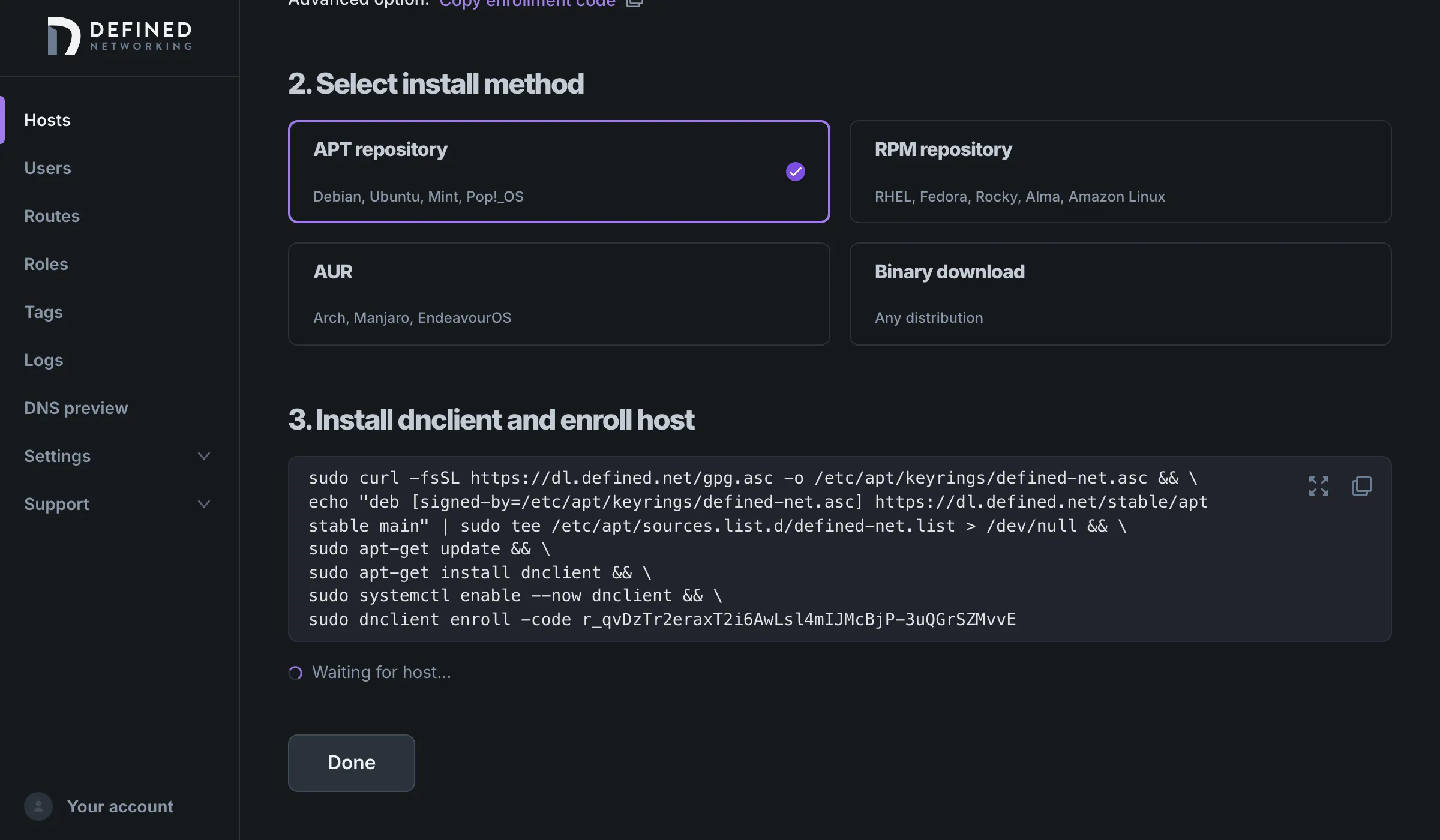
- Follow the steps on the machine. When the host enrolls, the screen shows “Detected host enrolled, redirecting…” and then closes.
To copy just the code, for example to send it to whoever sets up the machine, click Copy enrollment code next to Advanced option under Select OS. The install guides for DNClient Server, DNClient Desktop, and Mobile Nebula cover each platform.
If a host enrolls but can’t reach other hosts, check that its role allows the traffic, then see Running host diagnostics to look at its tunnels from the admin panel.
How enrollment codes work
Section titled “How enrollment codes work”An enrollment code ties one machine to one host you’ve already created. When a machine enrolls, DNClient generates the host’s key pair on the machine and sends Defined Networking only the public keys. Defined Networking signs a certificate for the host and returns it with the host’s configuration. The private keys never leave the machine.
- Single use: a code works once. It’s used up as soon as a machine tries to enroll with it, so if that enrollment fails, get a new code.
- Expires after 24 hours: codes from the admin panel always last 24 hours. Through the API you can choose a lifetime from 60 seconds to 7 days (see Manage hosts with the API).
- A new code each time: opening a host’s setup screen creates a new code. Codes created earlier aren’t cancelled; each one works until it’s used or expires.
- Not for blocked or SSO hosts: a blocked host must be unblocked before you can get a code for it. Hosts enrolled through endpoint SSO can’t be enrolled with a code at all.
Creating a code and enrolling with it are both recorded in the audit log.
Enrollment codes or join keys
Section titled “Enrollment codes or join keys”An enrollment code enrolls one machine as a host you created for it. A join key is reusable: any number of machines can enroll with it, and each one joins as a new host. Use enrollment codes when you know each machine ahead of time and want to name it and give it its own role and tags. Use a join key for machines that come and go, like CI runners and autoscaling groups, or when a device management tool enrolls many machines with the same settings.
Re-enroll a host
Section titled “Re-enroll a host”Re-enrolling gets a new enrollment code for an existing host and enrolls a machine with it. Use it when:
- the code expired or was lost before the machine enrolled,
- you’re moving the host to a new or rebuilt machine,
- the machine lost its DNClient state, for example after DNClient was uninstalled with its configuration, or a container ran without its volume,
- you’re switching a computer from DNClient Server to DNClient Desktop.
To get a new code, open the host’s page, click the More button (the three dots at the top right), and choose Enroll. The row menu on the Hosts page has the same Enroll item. Both open the host’s setup screen with a new code. Then enroll the machine with it.
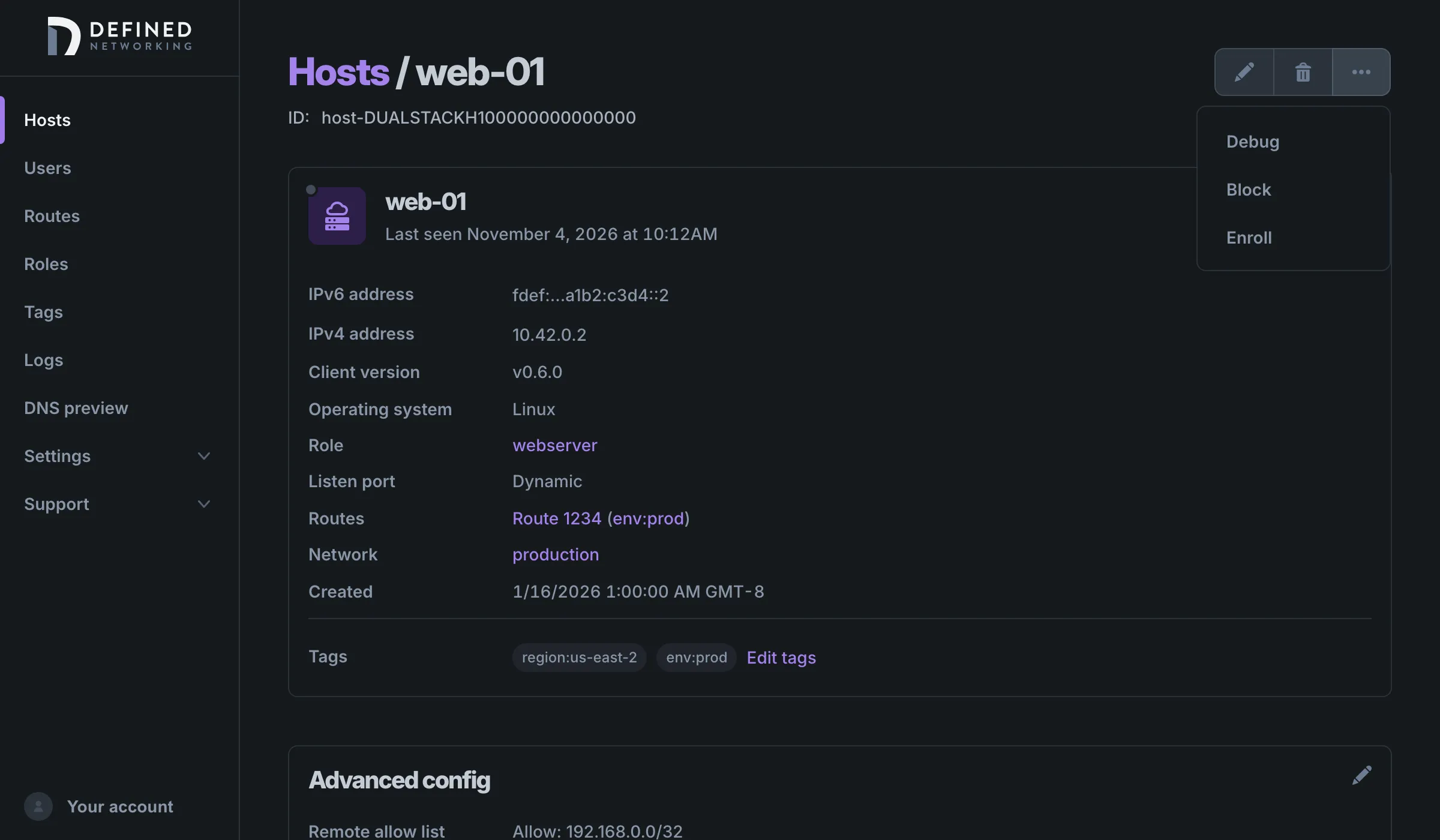
Creating a code doesn’t affect the host until a machine enrolls with it. When one does:
- The host record stays the same. It keeps its name, IP addresses, role, tags, and configuration overrides, so firewall rules and routes that refer to it keep working.
- The machine gets new keys and a new certificate. Defined Networking discards the host’s previous keys, so the machine that held them can no longer check in or receive new certificates and configuration.
Re-enrolling doesn’t add the previous certificate to the blocklist. If you’re replacing a machine because it may be compromised, block the host instead, or delete it and create a new one.
Edit a host
Section titled “Edit a host”Open the host’s page and click the Edit button (the pencil at the top right), or choose Edit from the host’s row menu on the Hosts page. The General tab has the host’s name, role, and tags. The Advanced tab has its configuration overrides. To change only tags, click Edit tags on the host’s page.
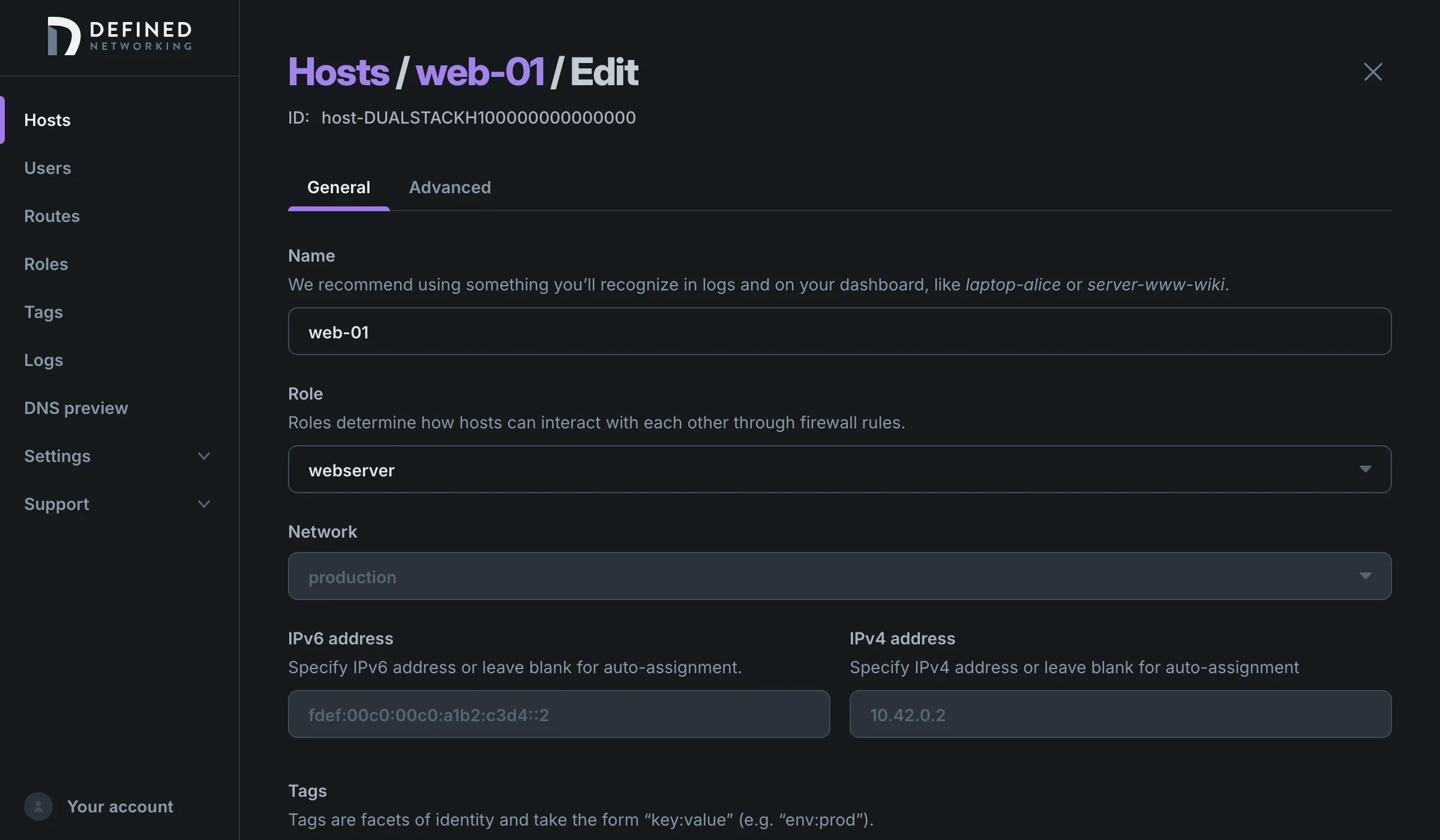
Changes to the name, role, and tags reach the host on their own. The host receives a new certificate with the updated details the next time DNClient checks in, and other hosts get updated configuration where they need it. A few advanced settings take effect only after DNClient restarts. When you save one of those, the admin panel tells you to restart DNClient, or on a phone, to disconnect and reconnect the tunnel.
A host’s network and IP addresses are set when it’s created and can’t be edited. The one exception: if the host has no IPv4 address and its network has an IPv4 range, its page shows + Add IPv4 address. To move a host to another network, follow Migrating between networks. To give a host a different address, create a new host and enroll the machine as it.
Delete a host
Section titled “Delete a host”Open the host’s page and click the Delete button (the trash can at the top right), or choose Delete from the host’s row menu on the Hosts page, then confirm.
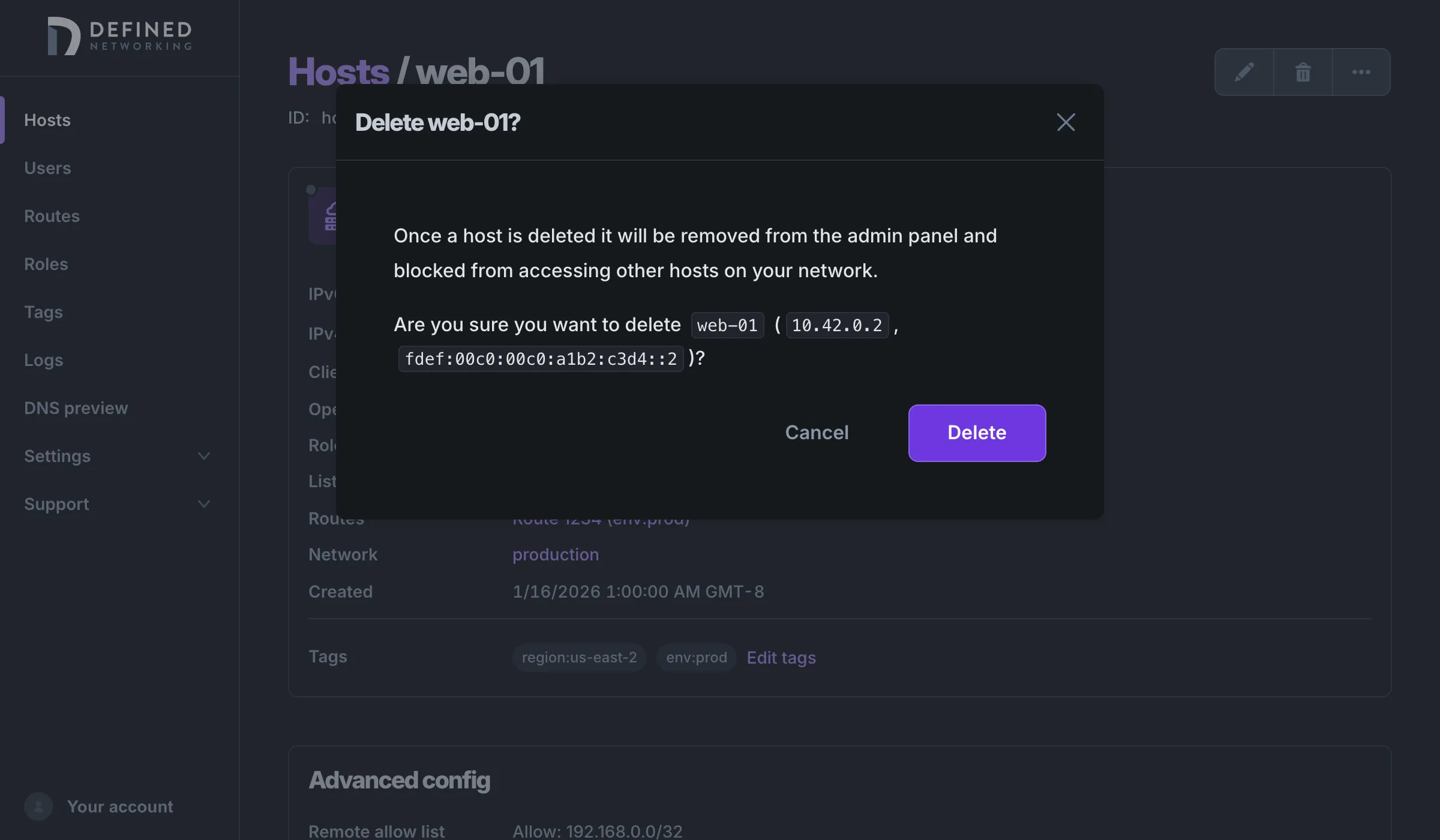
When you delete a host:
- Its record is removed from the admin panel, along with its tags and configuration overrides. Deleting can’t be undone.
- Its certificates are added to the network’s blocklist, and every other host in the network receives updated configuration. From then on they refuse the deleted host’s certificate, so its tunnels to them stop working and it can’t make new ones.
- It stops counting toward your bill.
- Any route that named it as its router is left without one. Choose another router for the route if the subnet still needs to be reachable.
- If it was the last host a person enrolled through endpoint SSO, that person is removed from the Users page.
DNClient on the machine isn’t touched. It keeps running until you uninstall it, but it can no longer reach the rest of the network.
Lighthouses and relays are deleted the same way. If it’s the network’s only active lighthouse or dedicated relay, the admin panel warns you first. Networks with managed lighthouses stay connected either way.
Delete or block?
Section titled “Delete or block?”Deleting is for machines that are gone for good. If you might want the host back, or want to keep its record while you look into a lost or compromised device, block it instead. Blocking cuts the host off the same way but keeps its record, and unblocking restores it without enrolling it again.
Decommission a machine
Section titled “Decommission a machine”To retire a machine cleanly:
- Uninstall DNClient from the machine. See Uninstalling DNClient Server or Uninstalling DNClient Desktop. On a phone or tablet, delete the site in Mobile Nebula.
- Delete the host in the admin panel.
Uninstalling alone doesn’t remove the host from your network, and deleting alone leaves DNClient installed on the machine. If you can’t reach the machine anymore, delete the host anyway: its certificate is blocklisted either way.
Manage hosts with the API
Section titled “Manage hosts with the API”Each admin panel action in this guide has an API operation. Grant your API key the hosts scopes it needs.
| Task | API operation | Scope |
|---|---|---|
| Create a host | Create host | hosts:create |
| Create a host and a code | Create host & enrollment code | hosts:create and hosts:enroll |
| Get a code for a host | Create enrollment code | hosts:enroll |
| Edit a host | Edit host | hosts:update |
| Add an IPv4 address to a host | Add IPv4 address to host | hosts:update |
| Delete a host | Delete host | hosts:delete |
Codes from the API also last 86400 seconds (24 hours) by default. To change that, pass lifetimeSeconds to Create enrollment code or codeLifetimeSeconds to Create host & enrollment code, from 60 to 604800 (7 days). Re-enrolling a host through the API is the same call: create a new code and enroll the machine with it.
Edit host replaces the whole host: any field you leave out is reset to its default, including tags and configOverrides. Fetch the host first and send back the values you aren’t changing.
Automating host creation walks through creating and enrolling hosts from a script.