Viewing DNClient logs
This guide explains how to view logs for DNClient in each of the supported platforms.
Streaming to admin panel
Section titled “Streaming to admin panel”To begin streaming logs to your web browser, log into the admin panel, find the host, lighthouse, or relay that you would like to inspect, click the three-dot menu, and choose “Debug.” From there, you can stream logs from DNClient for a maximum of five minutes at a time, or you can send debugging commands to inspect the state of the client. (Note: Query lighthouse should be run twice; the first command will return the current state from memory as well as start a query, and a repeated command will return updated result.) You can also download a copy of the logs from this page.
If you are using systemd:
journalctl --unit=dnclient --followConfig info
Section titled “Config info”sudo dnclient infoService status
Section titled “Service status”systemctl status dnclient# outputs● dnclient.service - Defined Networking client daemon Loaded: loaded (/etc/systemd/system/dnclient.service; enabled; vendor preset: enabled) Active: active (running) since Wed 2022-11-30 16:07:48 CST; 2min 3s ago Main PID: 546 (dnclient) Tasks: 10 (limit: 4560) Memory: 19.2M CGroup: /system.slice/dnclient.service └─546 /home/alice/dnclient run -server https://api.defined.net
# ... shows DNClient logs ...Logs for Server variant
Section titled “Logs for Server variant”sudo tail -f /usr/local/var/log/dnclient.*Logs for Desktop variant
Section titled “Logs for Desktop variant”DNClient Desktop has multiple logging outputs. The desktop app logs to the system log, viewable in Console.app or log. The dnclientd daemon service logs to /Library/Logs/DefinedNet/dnclientd.log. Each dnclient instances logs to /Library/Logs/DefinedNet/dnclient.$(host-ID).log.
View Desktop App Logs:
log show --last 3h --predicate 'subsystem == "net.defined.dnclient-desktop"'View dnclientd logs:
sudo tail -f /Library/Logs/DefinedNet/dnclientd.logView dnclient logs:
sudo tail -f /Library/Logs/DefinedNet/dnclient.$(host-ID).logConfig info
Section titled “Config info”sudo dnclient infoService status
Section titled “Service status”sudo launchctl list dnclient{ "StandardOutPath" = "/usr/local/var/log/dnclient.out.log"; "LimitLoadToSessionType" = "System"; "StandardErrorPath" = "/usr/local/var/log/dnclient.err.log"; "Label" = "dnclient"; "OnDemand" = false; "LastExitStatus" = 0; "PID" = 663; "Program" = "/Users/alice/.local/bin/dnclient"; "ProgramArguments" = ( "/Users/alice/.local/bin/dnclient"; "run"; "-server"; "https://api.defined.net"; );};Windows
Section titled “Windows”Logs for Server variant
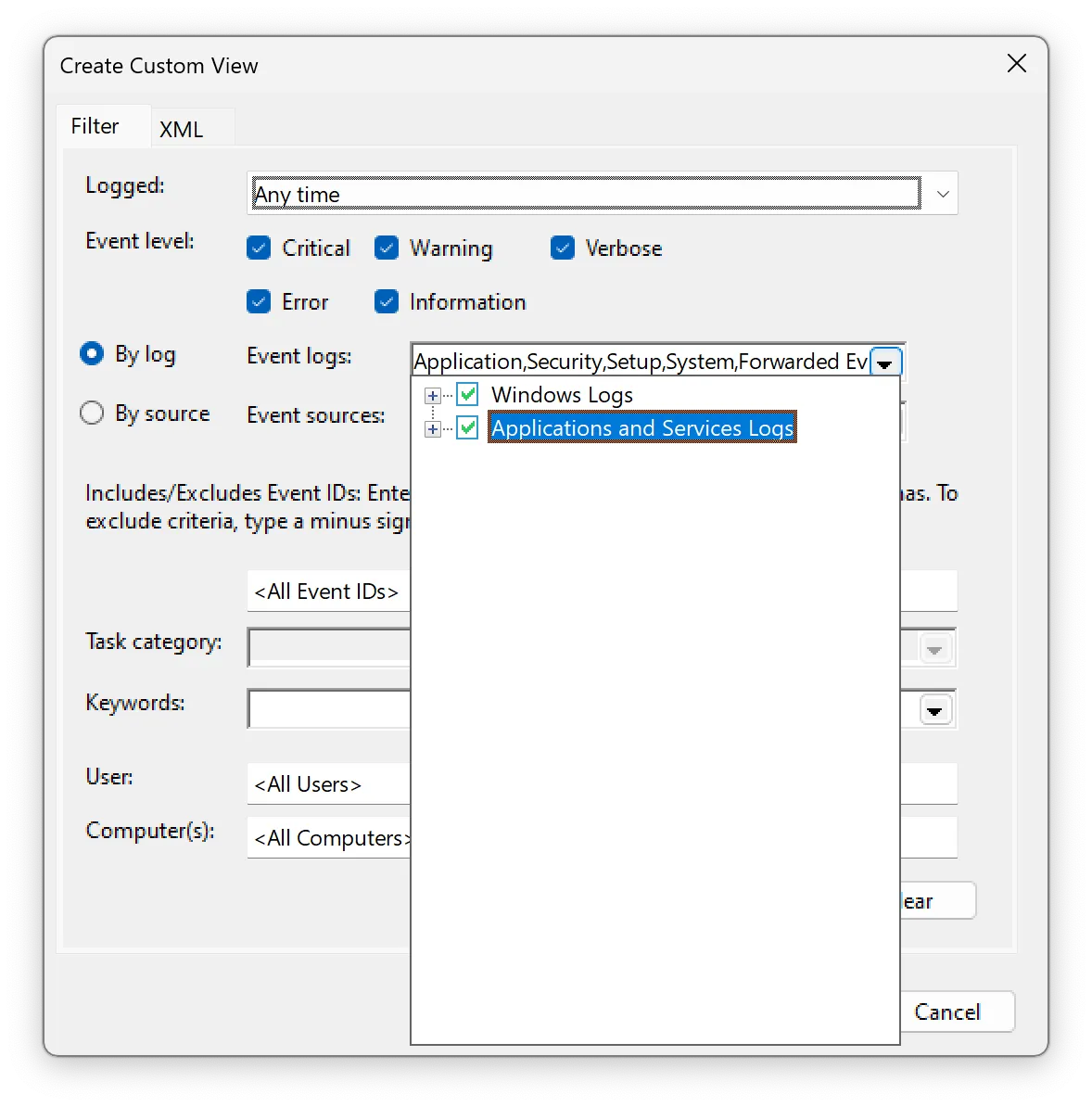
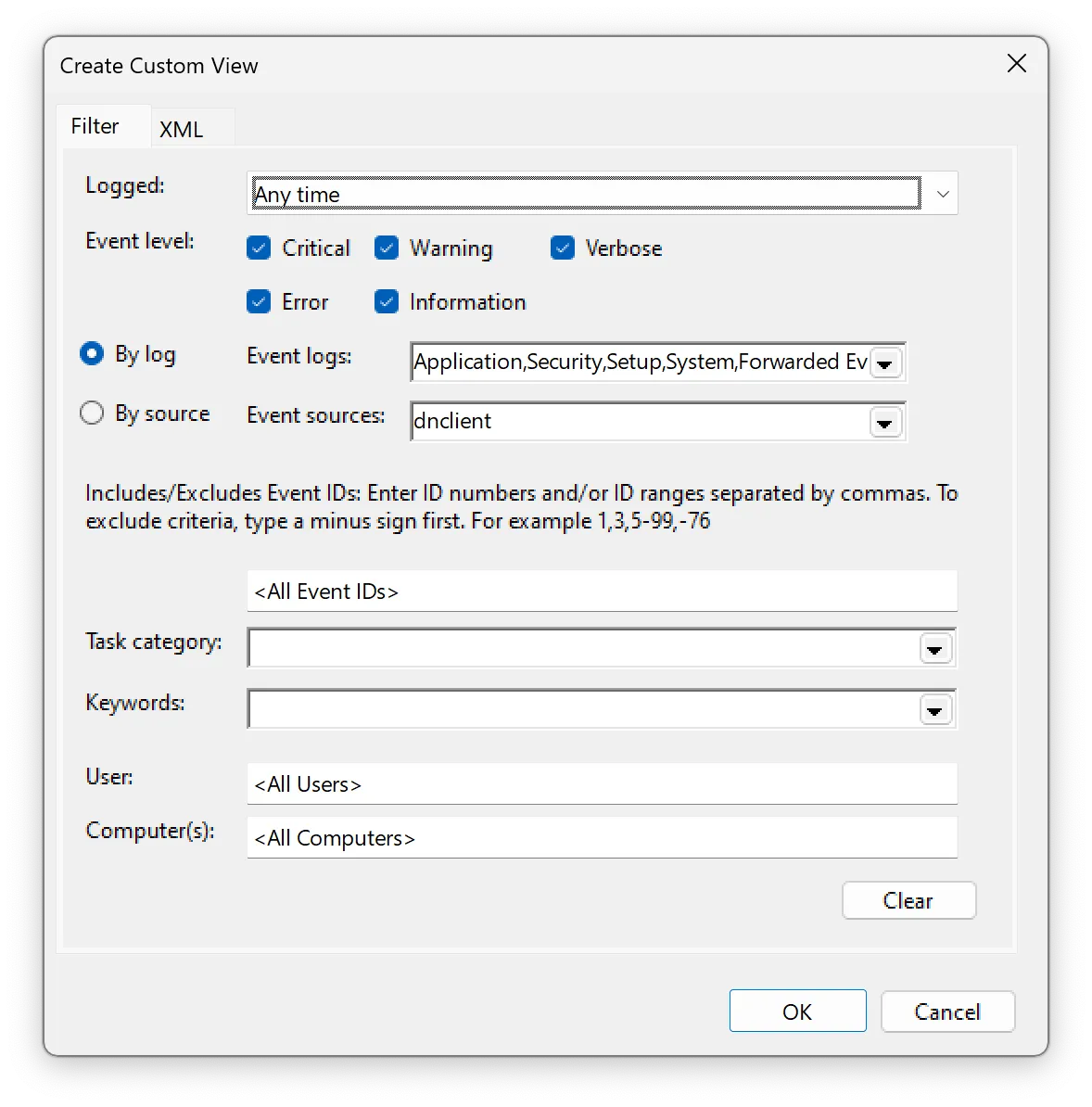
Section titled “Logs for Server variant”Open the Event Viewer app, click on Custom Views -> Administrative Events -> manually enter dnclient for “Event sources”.
You can also make a “Custom View” which filters on the dnclient source.
Logs for Desktop variant
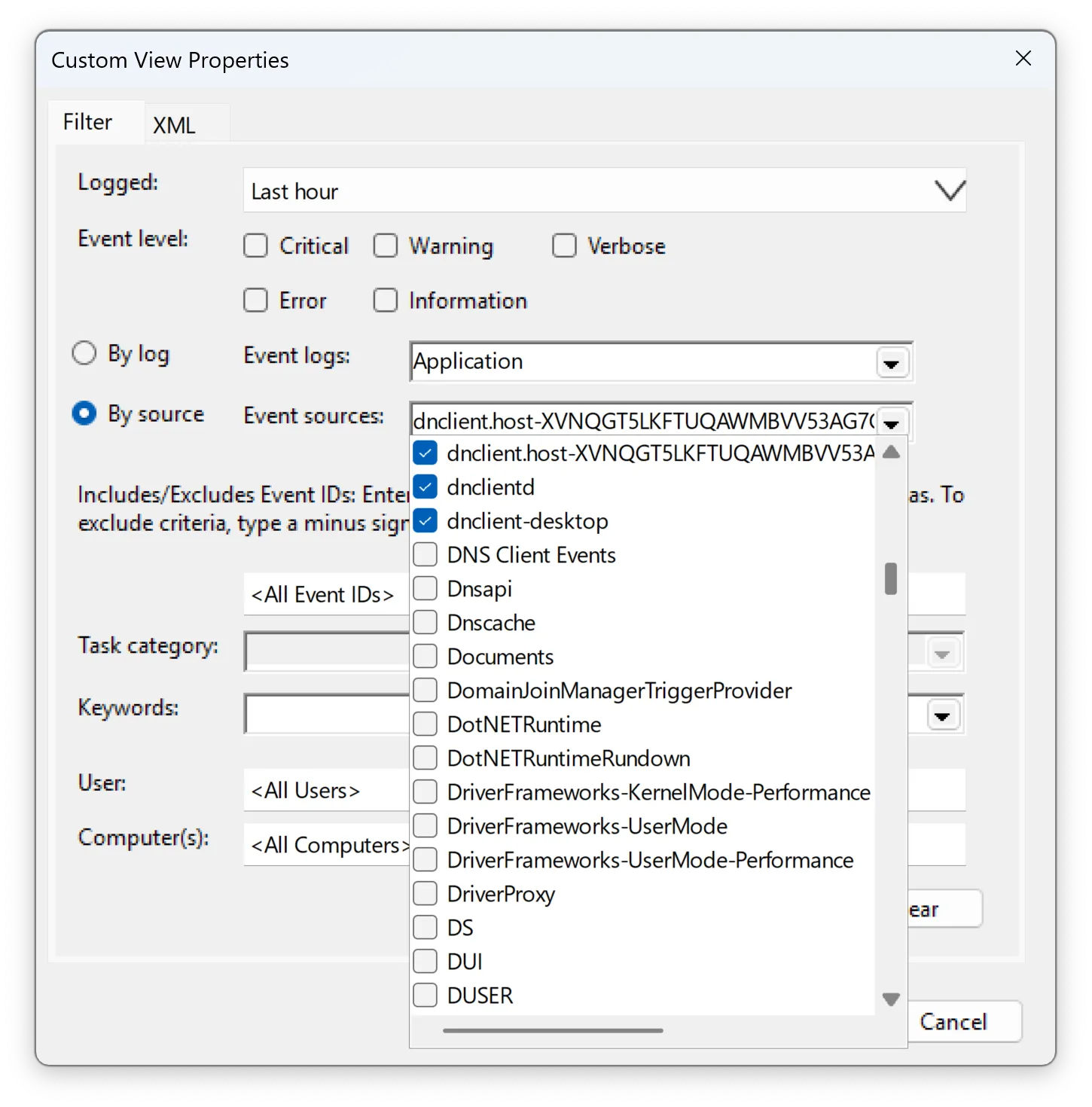
Section titled “Logs for Desktop variant”DNClient Desktop outputs to Event Viewer under several sources: dnclient-desktop, dnclientd, and dnclient.$(host-ID).
You can make a “Custom View” which filters on all three sources.
Config info
Section titled “Config info”& 'C:\Program Files\Defined Networking\DNClient\dnclient.exe' infoService status
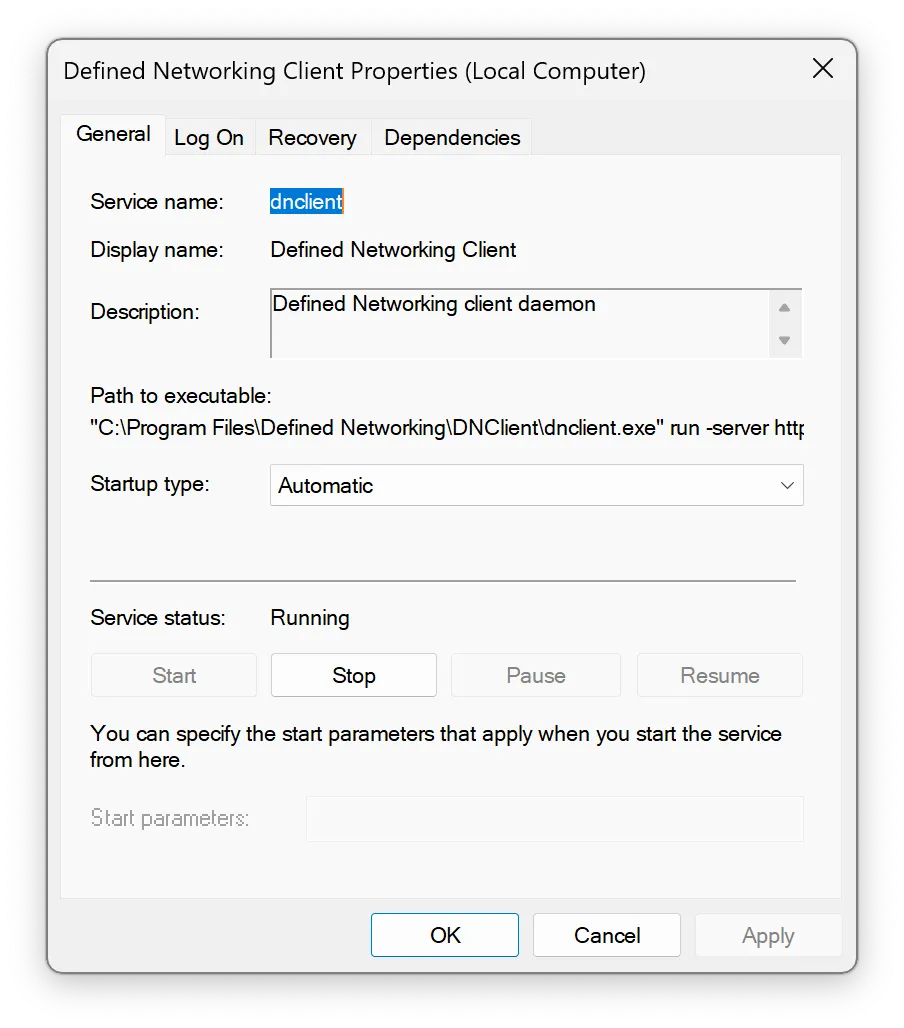
Section titled “Service status”To check the status of the service, open Services app, and find the Defined Networking Client service in the list. You should be able to see the status and start or stop the service.
Android / iOS
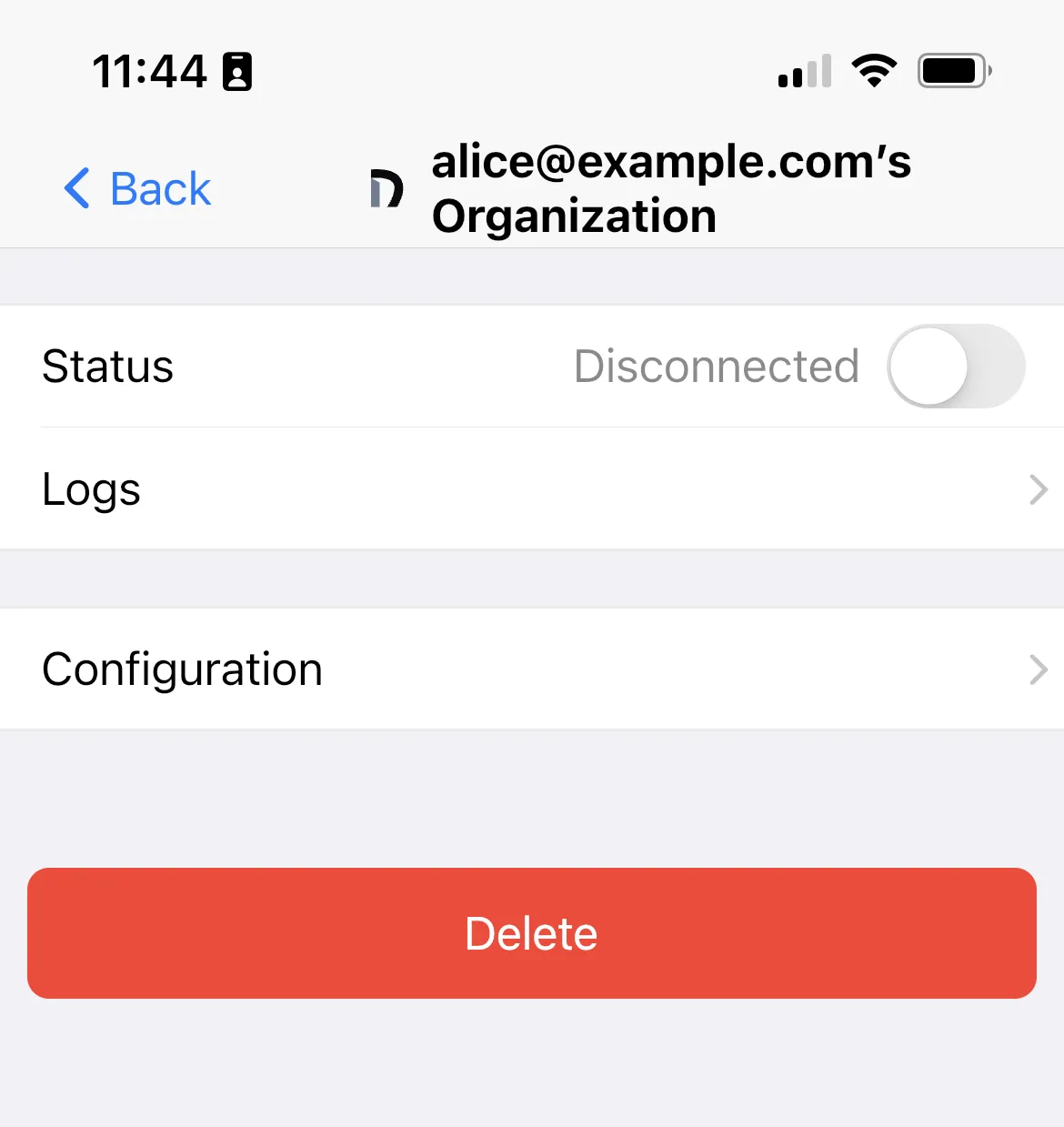
Section titled “Android / iOS”Tap on the site in question and tap “View Logs” on the details page for that site. You can then read, share, or delete your logs.