Configuring advanced host settings
Managed Nebula writes each host’s Nebula config for you. When a host needs something different, like a smaller MTU, debug logging, or a filter that keeps Docker addresses out of lighthouse updates, you change it with advanced config. The API and the Terraform provider call these settings config overrides.
This guide covers what’s specific to Managed Nebula: where advanced config lives in the admin panel, how values set in different places combine, and when hosts pick up a change. For what each setting does, see the Nebula config reference. For each key’s type and allowed values, see Config override keys.
Where advanced config lives
Section titled “Where advanced config lives”You can set advanced config in three places:
| Level | Where in the admin panel | Applies to |
|---|---|---|
| Host | Hosts, open the host, click the edit (pencil) button, then the Advanced tab | That host |
| Tag | Tags, open the tag, Host advanced config section | Every host, lighthouse, and relay with the tag |
| Network | Settings > Networks, click the network name, Host advanced config section | Every host, lighthouse, and relay in the network |
On a host, the Advanced tab shows each setting as its own field, grouped into sections such as IP preferences, TUN, and Logging. Each field’s help text links to the setting’s entry in the Nebula reference. A field left empty uses Managed Nebula’s default. A field whose value comes from one of the host’s tags shows that value with Inherited from and the tag’s name.
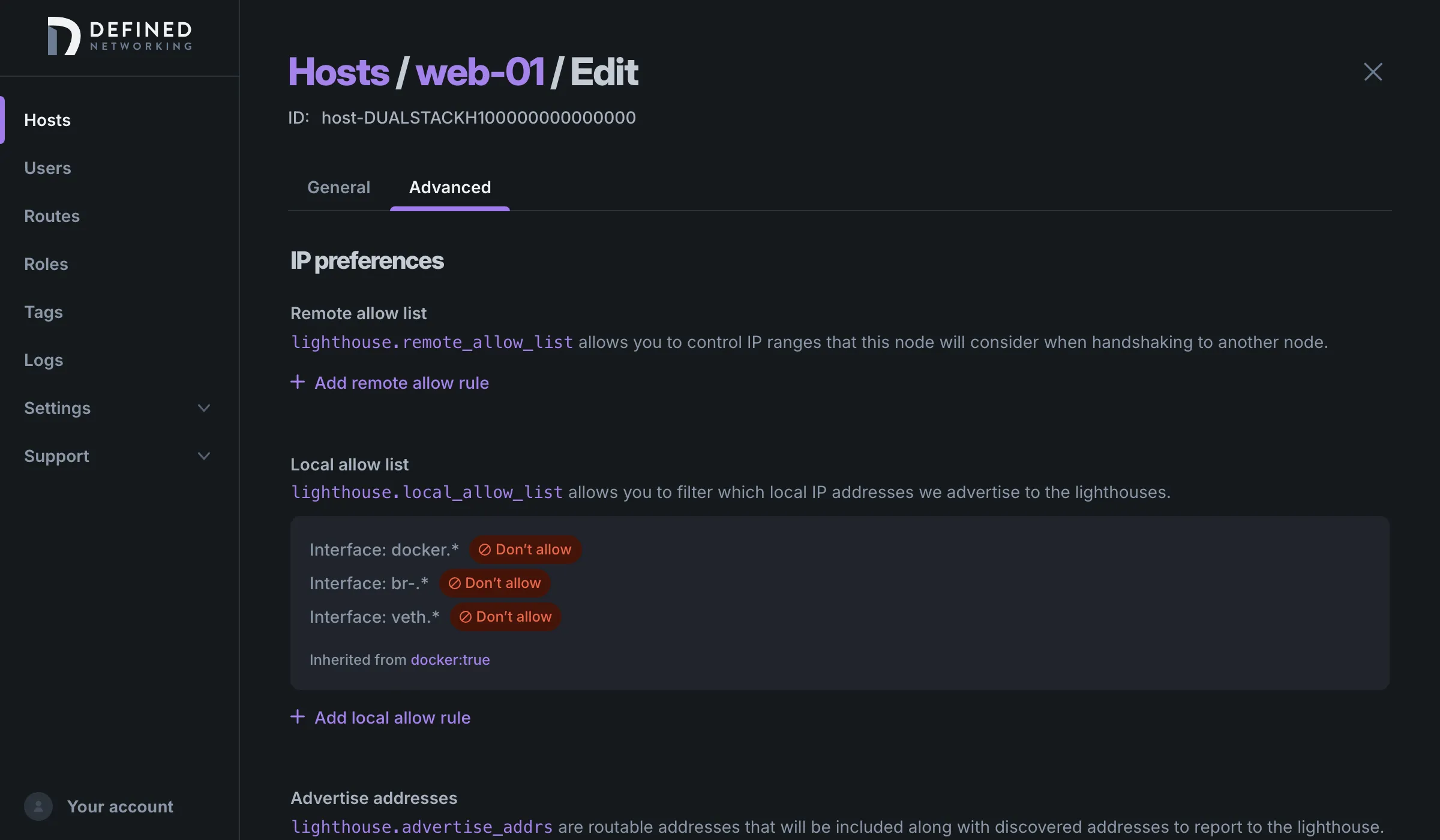
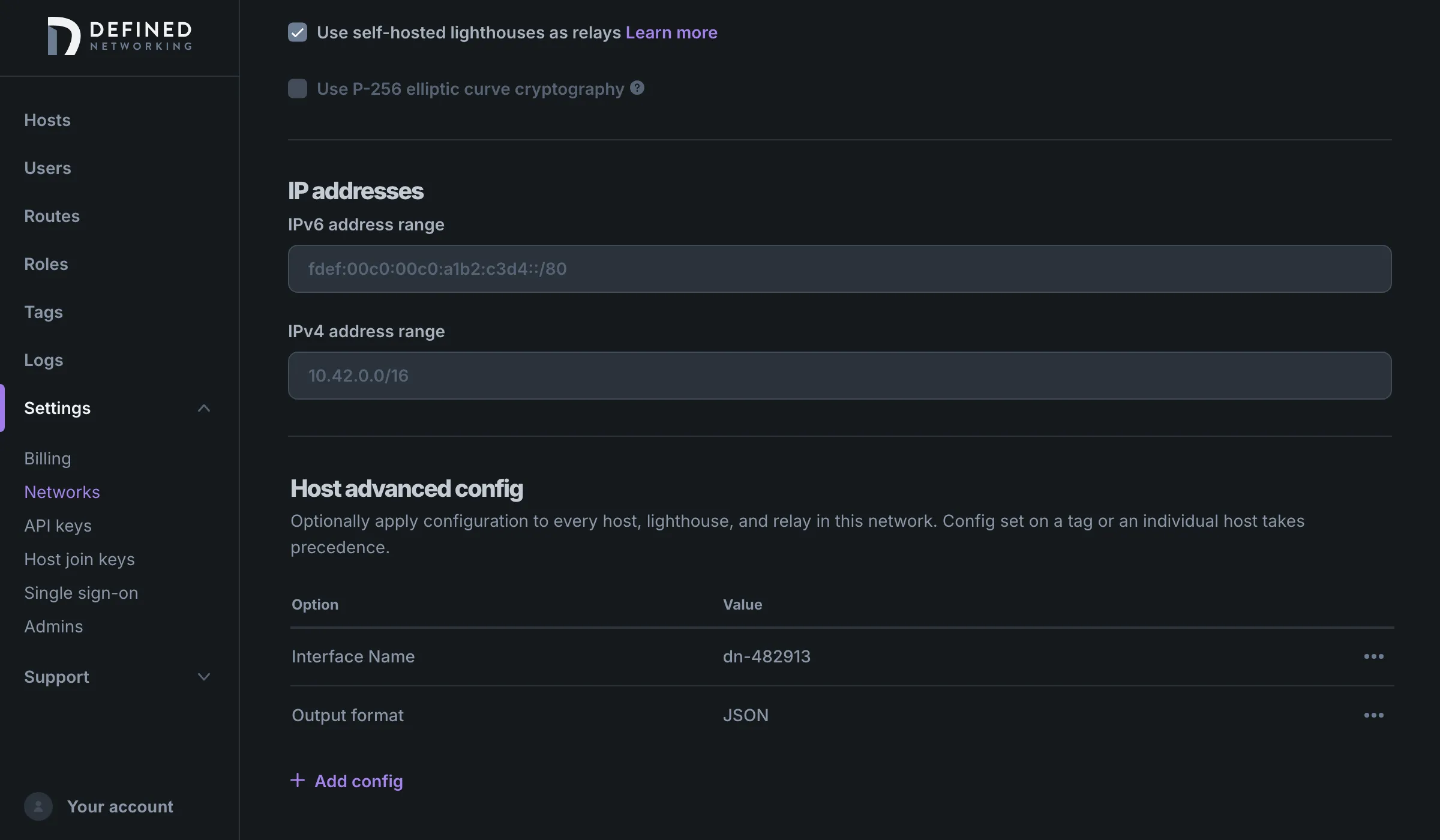
Tags and networks list their settings in a table. Click Add config and choose a setting from the Select option menu, which uses the same sections. Configuring hosts with tags walks through adding config to a tag. The network’s section appears only when you edit an existing network, not in the form that creates one.
New networks start with one setting already in place: Interface Name, set to a generated name such as dn-482913. Managed Nebula picks a name that no other network in your organization uses, so on Linux a machine enrolled in more than one network gets a separate interface for each. Networks created before Managed Nebula started generating names don’t have this setting, and their hosts use defined1.
A couple of settings are offered in only some places:
- Lighthouse interval can be set on tags and networks, not on a single host.
- Listen port on a host’s Advanced tab is a host field, not a config override, so tags and networks don’t have it.
Advanced config doesn’t apply to managed lighthouses, only to hosts, lighthouses, and relays you run yourself.
How values combine
Section titled “How values combine”Each setting is worked out on its own. For each one, Managed Nebula starts from its own default, then applies the network’s value, then the values from the host’s tags, then the host’s own value. The last value set wins:
- A value set on the host beats everything else.
- A value from a tag beats the network’s value. When two of the host’s tags set the same setting, the tag higher on the Reorder page of Tags wins. See Tag precedence.
- A value set on the network applies to every host that doesn’t get one from a tag or from the host itself.
A value replaces the one below it as a whole. Lists aren’t merged: if a tag sets a Local allow list and the host sets its own, the host uses only its own list.
Checking a host’s values
Section titled “Checking a host’s values”The host’s page has an Advanced config card listing the values that come from the host and its tags. A value that comes from a tag shows the tag’s name in parentheses.
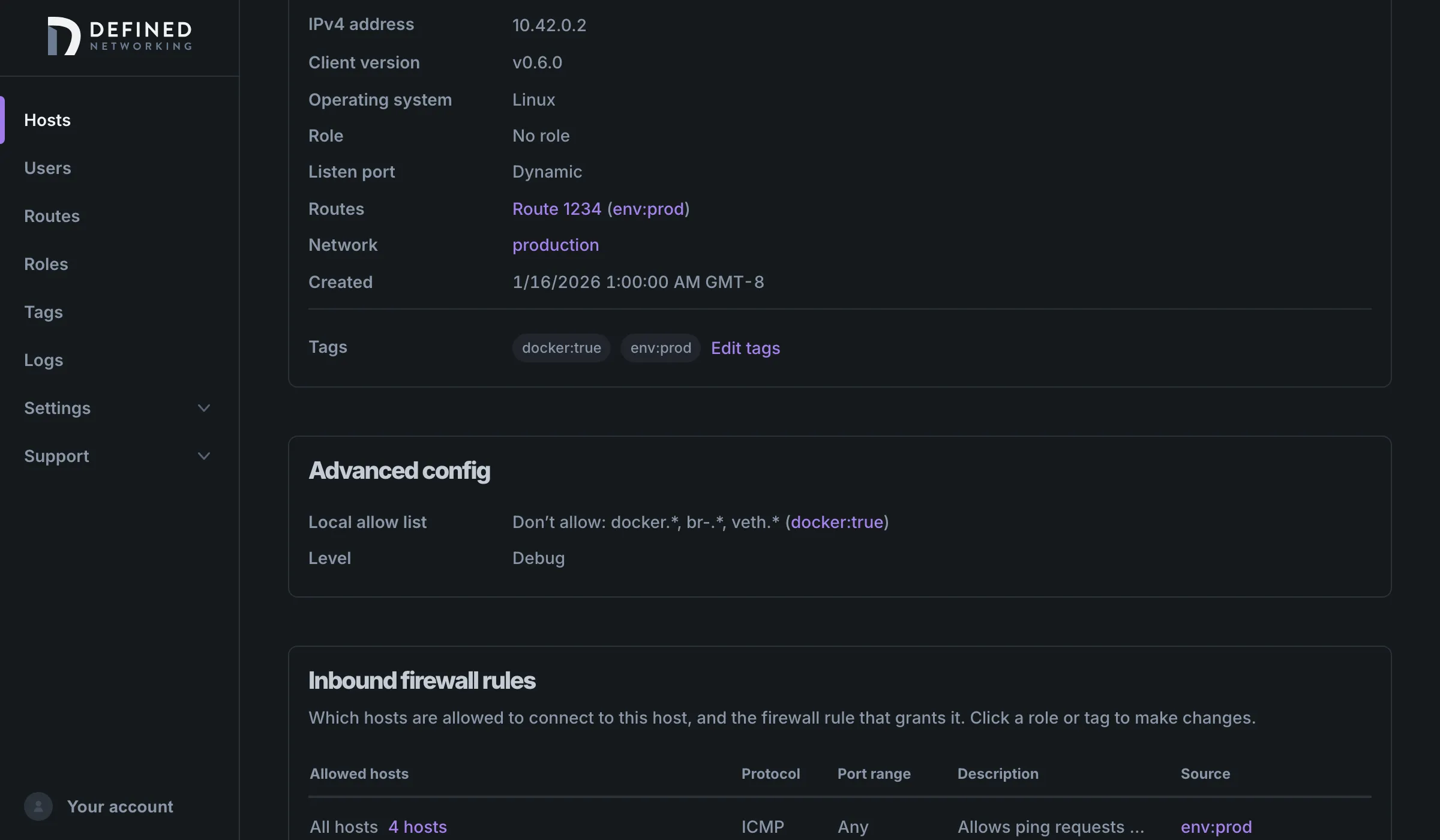
The card and the Advanced tab don’t include values set on the network. In the example above, the production network sets Output format to JSON and web-01 uses it, but it appears only in the network’s Host advanced config section. To see every value a host is running with, including the network’s, run dnclient info on the host. It prints the host’s Nebula config without its private key. See Viewing DNClient logs for the command on each platform.
When changes take effect
Section titled “When changes take effect”When you save a host, tag, or network, Managed Nebula marks each affected host for a new config, and DNClient fetches it on its own. Most settings take effect without a restart.
Nebula reads a few settings only when it starts. When you change one of them, the admin panel shows a Restart dnclient dialog. Restart DNClient on the affected hosts to apply the change. For a mobile device, the dialog is Reconnect this device instead: turn the tunnel off and back on in the app. On DNClient 0.9.6 and later, the settings that need a restart are Listen host, Batch, Routines, UDP offloads, TUN offloads, TX queue, and MTU. Before 0.9.6, the Stats settings need one too, and before 0.5.1, so does Preferred ranges.
Common tasks
Section titled “Common tasks”Lowering the MTU
Section titled “Lowering the MTU”If large transfers stall while small requests work, a link between your hosts may not carry full-size overlay packets. Set MTU in the TUN section to a lower value, such as 1280. Managed Nebula uses 1300 and accepts values from 1200 to 10000. Set it on the network or on a tag rather than host by host, so hosts that talk to each other agree. MTU is one of the settings that needs a DNClient restart. MTU explains how to test which size gets through.
Keeping Docker addresses out of lighthouse updates
Section titled “Keeping Docker addresses out of lighthouse updates”Hosts that run Docker report their Docker bridge addresses to the lighthouses, and no other host can reach those addresses. Create a tag such as docker:true, add a Local allow list to it with deny rules for the interfaces docker.*, br-.*, and veth.*, and assign the tag to your Docker hosts. Interface rules are regular expressions, and they must all allow or all deny. Configuring hosts with tags walks through it.
Turning on debug logging for one host
Section titled “Turning on debug logging for one host”To troubleshoot a single host, open its Advanced tab and set Level in the Logging section to Debug. Because a host’s own value wins, this works even if a tag or the network sets a different level. DNClient applies it without a restart. When you’re done, set Level back to what the host used before, since debug logging is verbose. To read the logs, see Viewing DNClient logs.
Settings only the API can set
Section titled “Settings only the API can set”These keys have no field in the admin panel. Set them with the API or Terraform.
| Key | Use it to |
|---|---|
relay.use_relays | Stop a host from using relays to reach peers. |
tunnels.drop_inactive | Turn off closing idle tunnels. Managed Nebula turns it on by default. |
tunnels.inactivity_timeout | Change how long a tunnel can sit idle before it’s closed, as a duration. Managed Nebula uses 2m by default. |
listen.send_recv_error | Control when the host replies to packets it has no tunnel for. Nebula always replies by default. |
listen.so_mark | Linux only. Mark Nebula’s packets for policy routing. |
tun.pin_threads, tun.pin_threads_key, tun.cpu_affinity | Pin Nebula’s threads to CPUs. |
Setting advanced config with the API or Terraform
Section titled “Setting advanced config with the API or Terraform”The API sets config overrides on each level:
- Host: Set host config overrides
- Network: Set network config overrides
- Tag: the
configOverridesfield of Update tag
Each override is a key and a JSON value, and a request replaces the whole list. Send every override you want to keep, or an empty list to remove them all. For a network, that includes its generated tun.dev: leave it out and the network loses its interface name. For example, to set debug logging and a 1280-byte MTU on a host:
{ "overrides": [ { "key": "logging.level", "value": "debug" }, { "key": "tun.mtu", "value": 1280 } ]}In Terraform, the definednet_tag and definednet_network resources take a config_overrides list, with each value wrapped in jsonencode(). On a network, leaving out config_overrides keeps the generated tun.dev, and setting it, even to an empty list, replaces the whole list. The provider has no host resource, so host overrides are set through the API only. See Managing your network with Terraform.